Setting Up Lead Filters
Filters let you control who can send you leads and who you can send to. Think of them as a bouncer for your inbox.
What Are Lead Filters?
Lead filters are controls that determine:
- Inbound — Who can send leads TO you
- Outbound — Who you can send leads TO
You can set filters per trade category, which gives you fine-grained control. Find them in your settings under the Lead Filters tab.
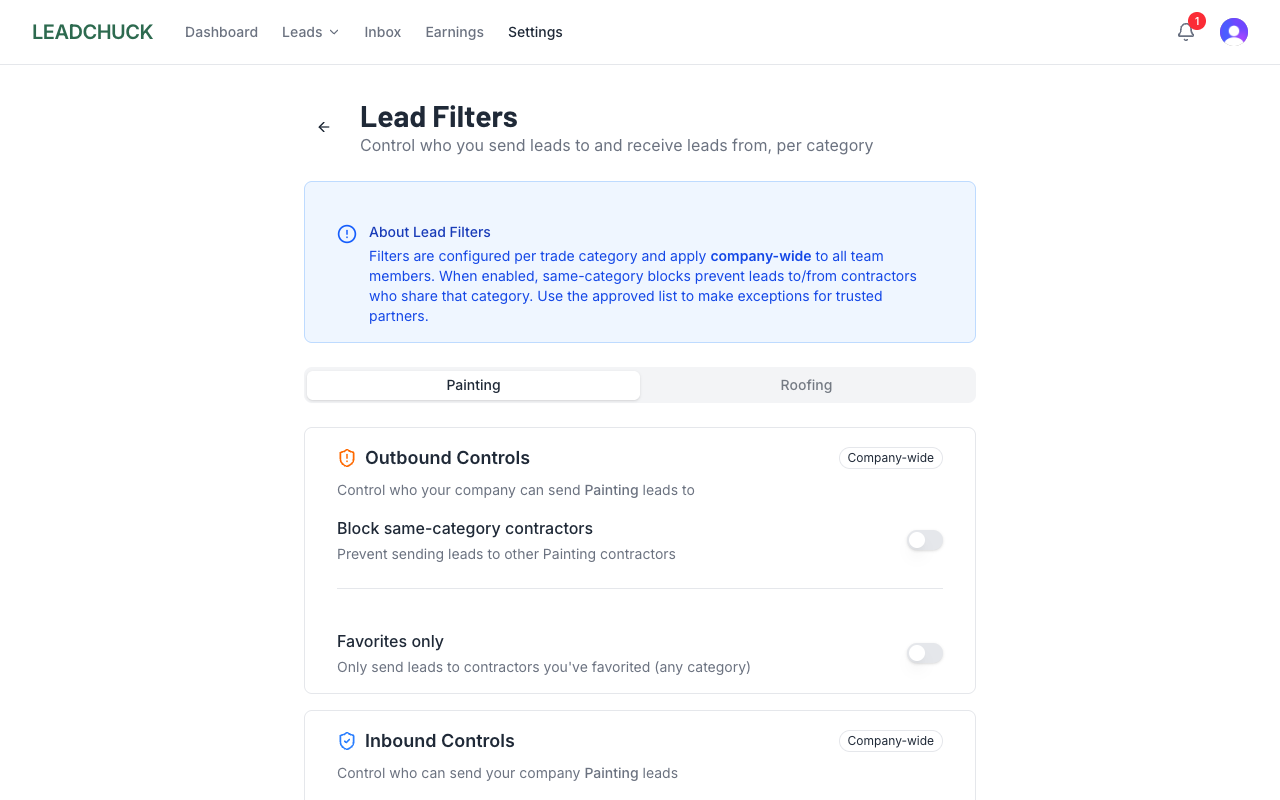
Block Same-Category Leads
This is the big one. If you're a roofer, do you want other roofers sending you leads? Maybe not — they could be competitors fishing for your client info.
Per-category blocking lets you turn this off for specific trades. Toggle it on, and contractors in that same category can't see you or send you leads.
⚠️ Heads up
Same-category blocking goes both ways. If you block roofers from sending you leads, you also can't send leads TO other roofers. It's a two-way street.
Favorites-Only Mode
Want to only receive leads from contractors you've personally vetted? Turn on favorites-only mode. Only contractors on your favorites list can send you leads.
This is great once you've built a network of trusted senders — you know who sends quality stuff and you only want to hear from them.
When NOT to use it: If you're just starting out. You need leads coming in from everyone to build your network. Don't restrict yourself before you've even started.
Approved Contractor Whitelist
Even with filters on, you can create exceptions for specific people. The approved contractors list lets you whitelist individual contractors who bypass your filters.
Use case: you've blocked same-category leads from painters, but there's one painter in the next town who always sends you solid referrals. Add them to your approved list and they can still send to you.
RESPA Rules (Automatic)
Some category pairs are automatically blocked due to federal law. RESPA (Real Estate Settlement Procedures Act) prohibits referral fees between certain real estate-related professionals.
For example, real estate agents and mortgage brokers can't pay each other referral fees. LeadChuck enforces these rules automatically — you don't have to do anything. If a category pair is blocked, you won't even see the option.
How to Set Up Filters
- Go to Settings → Lead Filters
- Choose the Inbound or Outbound tab
- Toggle same-category blocking per trade
- Turn on favorites-only mode if you want (under Inbound)
- Add exceptions using the approved contractors search
💡 Pro Tips
- If you're worried about competitors seeing your client info, turn on same-category blocking. Just remember it cuts both ways — you can't send leads to your own trade either.
- Favorites-only is powerful but restrictive. Wait until you have at least 5–10 trusted senders before turning it on.
- Check your filters if leads dry up. Sometimes you set a filter months ago and forgot about it. A quick look at your filter settings might explain why nobody's sending you anything.
- Use the approved list generously. Blocking a whole category but whitelisting the good ones gives you the best of both worlds.